
Often, clients attempt to update their website and have to fix broken website links when links do not work, images do not show, or something breaks. A common cause is a path that points somewhere different from what you intended. To fix broken website links, start by checking how the browser resolves the URL.
Fix broken website links: Start with the root directory
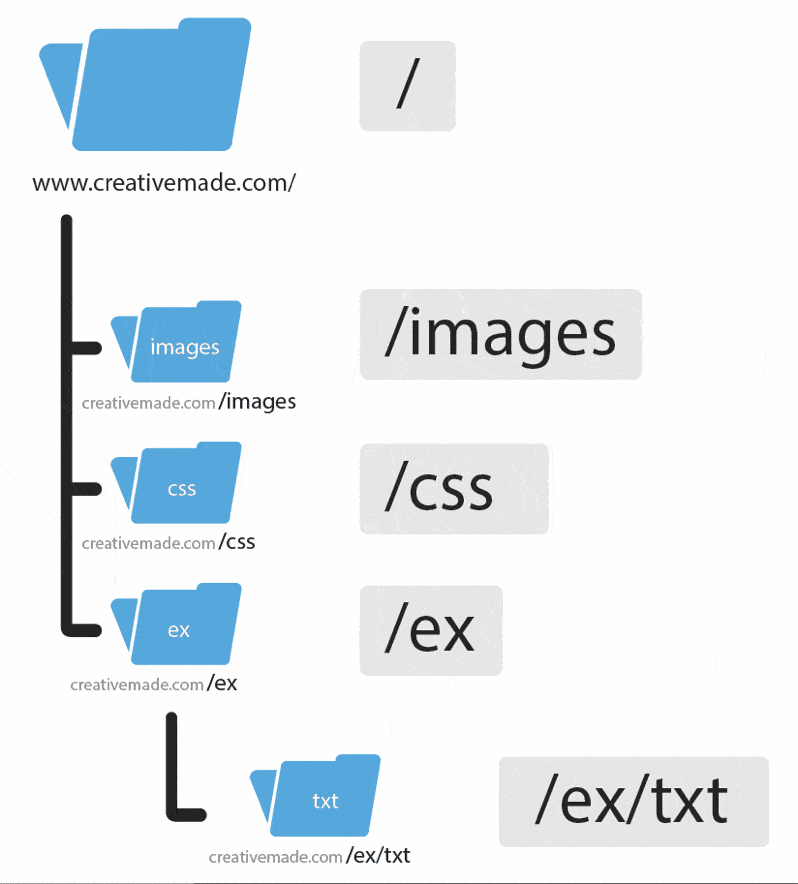
This is the top folder, and generally what displays when you visit your domain URL. Now, you don’t have to type in your entire domain name, but instead can reference this root directory. Remember, these are all just folders, so think of them like folders on your computer. The root directory is like your \username\ folder on your computer, except it goes to your server as www.username.com/ instead. And the folders beneath, are just like folders in your \username\ folder on your computer.
Understand document-relative links
To fix broken website links, you need to know whether a path starts from the current folder or the root directory. So you can have /example.html display as www.yourdomain.com/example.html OR you can make the link example.html display as www.yourdomain.com/example.html – and as long as the file you’re editing is also in the same folder as the one your are linking, this works.
Link relative to the root directory
So what happens if you have a file in /css and want to reference a file in /images? Easy, you reference the root directory! If you’re editing stylesheet.css that lives in /css, and you want to point to file.jpg that lives in /images, your link is written as /images/file.jpg! Why is this tricky? Because commonly, you’ll work in the root directory, so you don’t reference it. Linking to portfolio.html works fine, you don’t need to add the slash ( / ) for it to work. The problem occurs though, where maybe your entire navigation menu doesn’t reference the root. So what happens when a page linking to portfolio.html moves into a folder such as /ex? That link now points to /ex/portfolio.html! A root-relative link would still point to /portfolio.html. If you’re moving more than a single page, make time to fix broken website links in your website redesign SEO plan.